
Can I import a template into Leadpages? Yes, in two ways: a share link from another Leadpages user, which copies their customized page into your account, or your own HTML, which the new Leadpages app accepts through its Upload HTML option. What you cannot import is a design file such as a PSD or a downloaded template pack in another format. This guide walks through each route, then covers changing a page's template and saving layouts to reuse. For browsing the built-in library itself, see Leadpages templates.
Template Import Options in Brief
- Library templates: pick one when creating a page (From a template in the new app, or the template gallery in the Classic Builder).
- Shared templates: the Classic Builder can share any published page or site as a link that other Leadpages users copy into their own accounts.
- Your own HTML: the new app's Upload HTML takes an HTML file of up to 5 MB or pasted code.
- PSD and other design files: no import; rebuild the design or code it as HTML first.
- Reuse your work: Leadpages' FAQ says you can save any page as a custom template, and Duplicate copies a page with its styles.
Start a Page From a Leadpages Template

The quickest import is from the library itself. In the new app, click the arrow beside Create, then choose From a template under Start without AI, which uses no AI credits. You can also start with Piper, the AI builder, and pick a template from its Templates menu as the design starting point. In the Classic Builder, create a new landing page, filter the gallery, then hover over a template and click Start Building. Individual template pages on leadpages.com also have a Use This Template button that creates an editable copy in your account.
Import a Shared Leadpages Template
Sharing is how designers, agencies and teams pass a finished layout to another account. It is documented for the Classic Builder.
Send a Template Link
- Publish the page or site. Only published items can be shared, though you can unpublish afterwards.
- Open the Landing Pages or Sites dashboard and click the Actions menu next to the item.
- Choose Share Site/Page Template, click Copy Link and send it.
- For a split-test variation, open it in the builder, click the arrow beside Update and choose Share Page Template, since the dashboard does not show sharing for pages inside a split test.
Add a Template Someone Shared With You
- Open the link and review the Terms of Service.
- Click Continue to Preview, then Use This Site/Page.
- Sign in to your Leadpages account, or sign up if you do not have one.
- Connect your own integrations, form actions and thank-you pages, because those settings are not shared.
Each copy is independent, so later edits by either person do not sync. A share link stops working if the account that created it closes, although copies already added elsewhere keep working. Pages with more than 10 pop-ups cannot be shared until the extras are removed.
Upload Your Own HTML Template
If you bought or built a landing page template as HTML, the new Leadpages app is the place to bring it in.
- Click the arrow beside Create and start a page with Piper, then open the Actions menu and choose Upload HTML. You can also paste HTML straight into Piper's message box.
- Drop in the HTML file (up to 5 MB) or paste the code.
- Check images and links. Files referenced from your computer will not travel with the HTML, so host images online or upload them to the Media Library and update the paths.
- Configure page settings such as the slug, SEO title and favicon, then publish.
Test any form on the live page to confirm submissions arrive in Leadpages and your email tool. In the Classic Builder there is no full-page upload; the HTML widget holds embed code and snippets, which the custom code guide explains.
Ready to build your first page? Leadpages includes a 7-day free trial on every plan.
Start Free Leadpages TrialTurn a PSD or Design Mockup Into a Leadpages Page
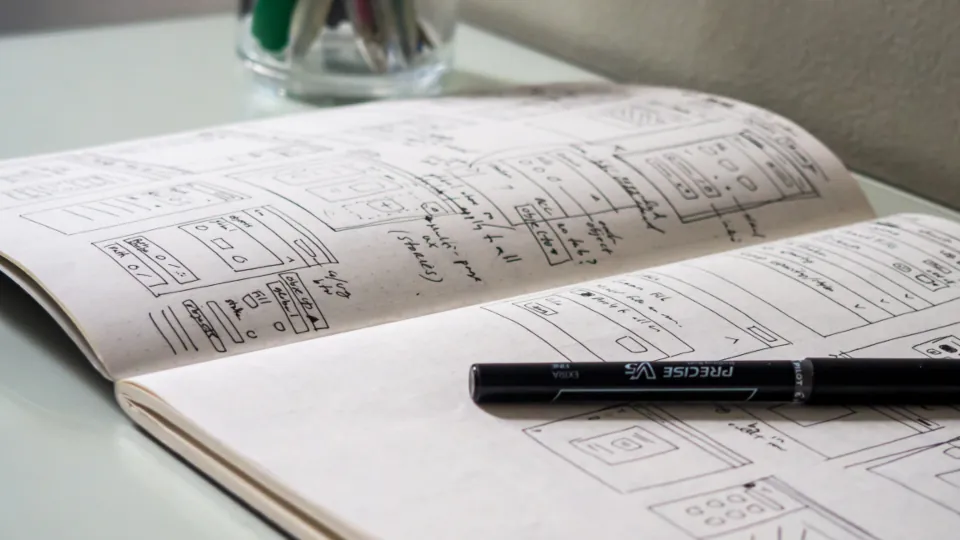
Leadpages does not read Photoshop, Figma or similar files. There are two realistic routes from a mockup to a live page:
- Rebuild it in the editor. Pick the template closest to your layout, export the mockup's photos and graphics as web images, and recreate the text as live text so it stays readable on mobile and indexable. Set your colors and fonts once in a Brand Kit (new app) or the brand colors settings (Classic).
- Code it, then upload. Have the design converted to responsive HTML and CSS, then use Upload HTML in the new app. This keeps a pixel-close design but means future edits happen in code.
Avoid uploading the whole design as one large image. It loads slowly, cannot be read by search engines and does not adapt to phone screens.
Change the Template of an Existing Page
Neither builder documents a way to swap the template under a page you have already built. The practical method is to create a new page from the template you prefer, then move your content across.
- Create the new page from the template you want.
- Copy sections across. In the Classic Builder, copy and paste whole sections between pages, and drag in ready-made section templates from the Sections panel. In the new app, the Section library offers ready-made sections.
- Reconnect forms to your email tool and set the thank-you redirect.
- Swap the URLs. Give the new page the old slug (after changing or deleting the old page's slug), or redirect the old page to the new one.
In the new app, save a labeled version in Version History before large changes so you can restore the earlier layout if needed.
Save and Reuse Your Customized Templates
Leadpages' FAQ says any page can be saved as a custom template to reuse across your account. Where you do not see that option, Duplicate does the same job: in Classic, open Landing Pages, click the three dots and choose Duplicate; content, styles and most integrations copy over, though Zapier and Checkouts do not. The new app has Duplicate in each page's menu too, plus reusable Widgets and Brand Kits under Assets.
Classic section templates cannot be saved on their own, but customized sections can be copied onto any of your other pages. For layout ideas before you customize, see Leadpages landing page examples, sales page templates and sales funnel templates.
Customize a Template Without Breaking It
- Change copy before design. Replace headlines, offer details and the call to action first, then adjust colors and images around them.
- Apply brand settings globally. In the new app, Reapply Brand to Page updates the whole page after you edit your Brand Kit.
- Check every device view. Hide or restyle elements for mobile rather than deleting them; the mobile editing guide covers this.
- Keep one primary action. Remove template sections that compete with your main button.
The drag-and-drop editor guide explains the editing tools in each builder in more depth.
Start From a Leadpages Template
Try Leadpages free for 7 days, start from a library template or your own HTML and publish once the page is ready.
Start Free Leadpages TrialFrequently Asked Questions
Can I use my own template in Leadpages?
Yes, if it is HTML. In the new Leadpages app, choose Upload HTML when creating a page and drop in an HTML file of up to 5 MB or paste the code. In the Classic Builder there is no full-page HTML import, so rebuild the layout with widgets or place pieces of code in an HTML widget; see custom HTML, CSS and JavaScript.
How do I install a Leadpages template someone sent me?
If they sent a share link, open it, accept the terms, click Continue to Preview and then Use This Site/Page, and sign in. The copy lands in your account ready to edit. If they sent a file instead, treat it as HTML and use Upload HTML in the new app.
Can I download Leadpages templates?
The help center does not describe a template download. Templates are used inside your account, and the old template marketplace now redirects to the main template gallery. Browse the library in Leadpages templates.
How do I change the template of an existing Leadpages page?
Leadpages does not document a button that swaps the template under an existing page. Create a new page from the template you want and move your content across. In the Classic Builder you can copy and paste whole sections between pages, which speeds this up.
Does a shared template include my integrations?
No. Leadpages says shared templates carry your text, images and widgets but not analytics data or integration settings, including the opt-in destination, thank-you page settings and lead magnet setup. The recipient connects their own tools.
Can I turn a PSD or Figma design into a Leadpages page?
Not by importing the file. Either rebuild the design in the editor using images exported from your design tool, or have the design coded as HTML and upload it with Upload HTML in the new app.